
Taking an asset-centric approach to your game data (e.g. to support modding) can be really good for project organization, but it can also prevent you from having a good overview of all your data. Let’s say your game has dozens of weapons, and each weapon asset specifies their own damage, ammo capacity, reload speed, etc. When the time comes to balance the game, there is no single place that instantly shows you which weapons are overpowered.
In our city builder, we use spreadsheets as the source of this game data. Spreadsheets are great at visualizing data, they give you lots of options for complicated calculations, and they’re a familiar front-end to any type of designer. If you want to import a spreadsheet into Unreal, you could simply export the CSV and import it as a datatable, but that would break the asset-centric project organization. That datatable would have references to all weapon types. Instead, we use Python scripts to read out the CSV files and edit the assets directly, and they’re actually quite simple to make.
To start using Python, follow these 4 steps (and restart Rider) to set up your environment:
- Enable the Python plugin
- Install Python Community Edition in Rider
- Set the Python interpreter to {path_to_UE}\Engine\Binaries\ThirdParty\Python3\Win64\python.exe)
- Add the PythonStub to the interpreter paths
Consider the Python base class below. It reads out the CSV line by line and handles the common stuff like
- Loading the asset using an asset reference from one of the CSV columns
- If you copy an asset in the Asset Browser and paste it in the spreadsheet, you have an asset reference
- Making sure the asset exists
- Showing a progress bar
- Handling exceptions
- Tracking transactions so you can undo the import
- Saving and checking out files
import unreal
import csv
from pathlib import Path

class UnrealCSVImporter():
    """Imports data from a CSV file and loads it into an Unreal asset
    """

    def __init__(self, csv_path: str, asset_ref_column_index: int, title: str):
        self.csv_path = csv_path
        self.asset_ref_column_index = asset_ref_column_index
        self.title = title

    def should_import(self, asset: unreal.Object, row: list[str]) -> bool:
        """Whether this asset should be modified at all

        :param asset: A loaded UObject
        :param row: The row from the CSV file
        """
        return True

    def import_row(self, asset: unreal.Object, row: list[str]) -> bool:
        """Updates the given asset with the data from the CSV row

        :param asset: A loaded UObject
        :param row: The row from the CSV file
        :return: Success. Asset will not be saved if importing fails.
        """
        return False

    def get_path_from_asset_reference(self, reference: str) -> str:
        first_split = reference.split("\'")
        if (len(first_split) == 0):
            return reference
        second_split = first_split[1].split(".")
        if (len(second_split) == 0):
            return reference
        return second_split[0]

    def get_asset_from_path(self, asset_path: str) -> unreal.Object:
        """Loads an asset based on the asset path

        :param asset_path: The asset to load.
        :return:
        """
        asset_library = unreal.EditorAssetLibrary
        if (asset_library.does_asset_exist(asset_path) == False):
            unreal.log_error(f"Asset '{asset_path}' doesn't exist!")
            return None
        return asset_library.load_asset(asset_path)

    def process_row(self, asset_reference: str, row: list[str]):
        """Processes a single row of the CSV. Loads the specified asset, modifies it, and saves it.

        :param asset_reference:
        :param row:
        :return:
        """
        successfull_import = False

        try:
            asset_path = self.get_path_from_asset_reference(asset_reference)
            asset = self.get_asset_from_path(asset_path)
            if (asset == None):
                raise ValueError("Loaded asset is none") # I didn't even bother making an Exception class
        except Exception as e:
            unreal.log_error(f"Failed to dereference asset '{asset_reference}'\n{e}")
            return

        try:
            if (self.should_import(asset, row)):
                unreal.log(f"Importing asset: {asset_path}")
                successfull_import = self.import_row(asset, row)
        except Exception as e:
            unreal.log_error(f"Failed to import {asset_reference}\n{e}")
            return

        if (successfull_import):
            unreal.EditorAssetLibrary.save_asset(asset_path) # Only saves files with changes
        else:
            self.all_imports_were_successfull = False

    def start(self):
        """Starts importing the CSV file

        """
        unreal.log(f"Started importing data from {self.csv_path}...")
        csv_file = Path(self.csv_path)
        if (not csv_file.exists()):
            unreal.log_error(f"Import failed. Couldn't find file: {self.csv_path}")
            return

        self.all_imports_were_successfull = True
        with open(self.csv_path, newline='') as f:
            reader = csv.reader(f)
            # Starting a scoped editor transaction allows you to undo the entire import with Ctrl+Z
            with unreal.ScopedEditorTransaction("Update assets from CSV") as trans:
                line_count = len(f.readlines())
                f.seek(0)
                #Starting a scoped slow task creates a loading bar widget on your screen
                with unreal.ScopedSlowTask(line_count-1, self.title) as slow_task:
                    for rowIndex, row in enumerate(reader):

                        if (rowIndex == 0):
                            unreal.log(f"Importing row structure: {row}")
                            on_first_row = False
                            continue

                        slow_task.make_dialog(True)
                        if slow_task.should_cancel():
                            self.all_imports_were_successfull = False
                            return
                        slow_task.enter_progress_frame()

                        asset_reference = row[self.asset_ref_column_index]
                        self.process_row(asset_reference, row)

        if (self.all_imports_were_successfull):
            unreal.log(f"Successfully imported data from: {self.csv_path}")
        else:
            unreal.log_error(f"Finished importing. One or more rows failed to import from: {self.csv_path}")

class BlueprintCSVImporter(UnrealCSVImporter):
    """The blueprint importer returns the CDO of the asset instead of the asset itself.
    """
    def get_asset_from_path(self, asset_path: str) -> unreal.Object:
        asset = super().get_asset_from_path(asset_path)
        if (asset is None):
            unreal.log_error(f"The CDO of '{asset_path}' could not be loaded!")
            return None
        generated_class = asset.generated_class()
        return unreal.get_default_object(generated_class)
You could then inherit from that class for each type of asset, and override the import_row function to map CSV columns to asset properties:
import unreal
import sys
import CsvImporter

class WeaponDataImporter(CsvImporter.UnrealCSVImporter):

    def import_row(self, asset: unreal.Object, row: list[str]) -> bool:

        # You can change an int property like this
        asset.set_editor_property("MagazineSize", int(row[2]))

        # You can set a struct property like this
        ammo_type = unreal.WeaponAmmo()
        ammo_type.BulletCount = int(row[3])
        ammo_type.DamagePerBullet = float(row[4])
        asset.set_editor_property("AmmoType", ammo_type)

        # You can also recreate the entire text structure of the struct in the spreadsheet and import it as text
        # (you can copy the struct value from the defaults to see the structure)
        ammo_type = unreal.WeaponAmmo()
        ammo_type.import_text(row[2])
        asset.set_editor_property("AmmoType", ammo_type)

        # You can check the value of a property like this. But don't be tempted to get the struct property,
        # and change a value directly on the struct. That would bypass the transaction history and it won't mark the asset as dirty.
        ammo_type = asset.get_editor_property("AmmoType")

        return True

importer = YV_BuildMenuEntryCostImporter(sys.argv[1], 1, "Importing Weapon Data...")
importer.start()
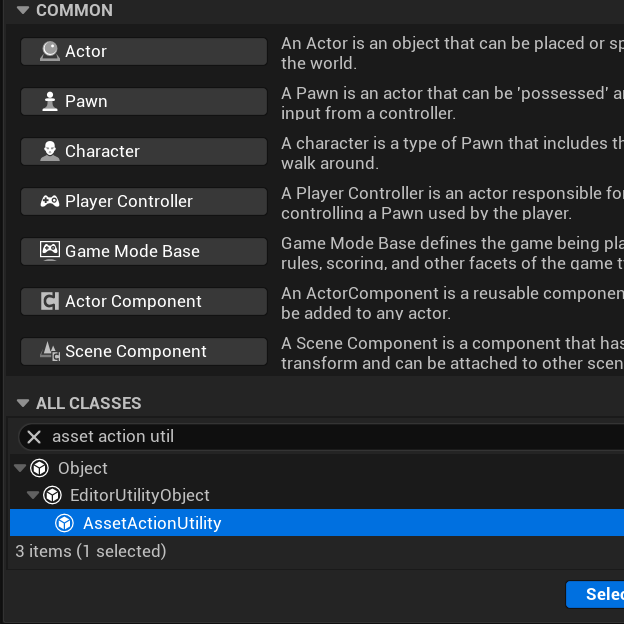
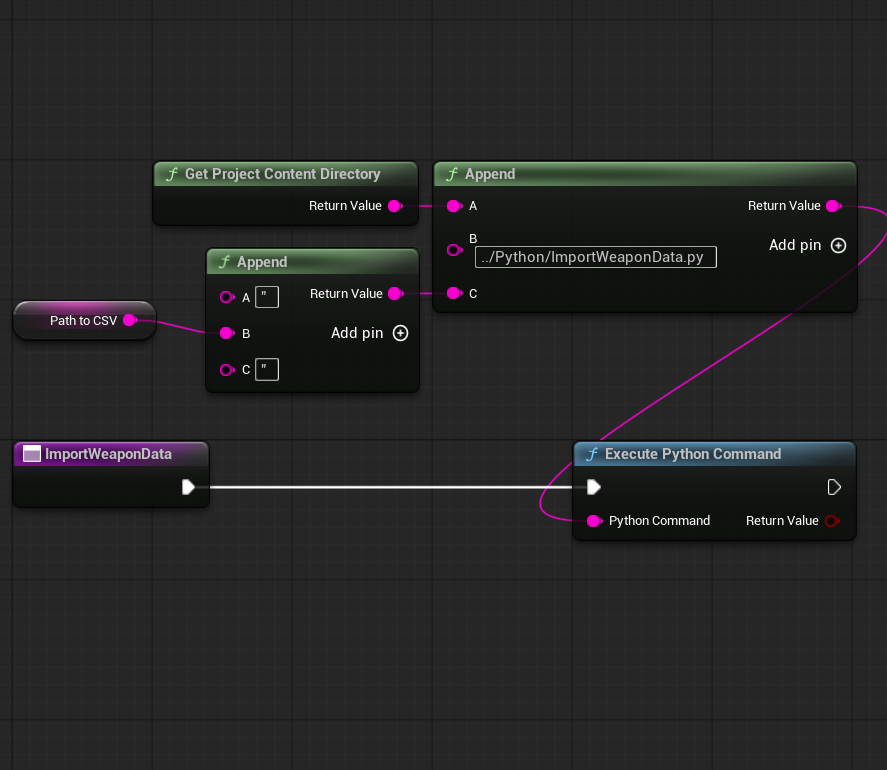
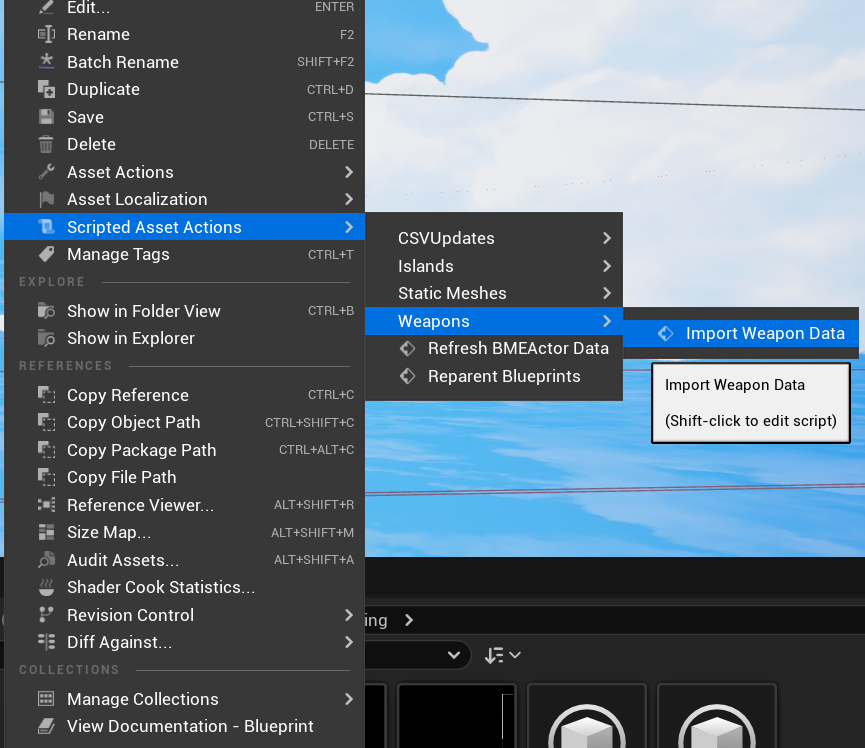
To call it, you could go to Tools > Execute Python Script…, but you can also create an AssetActionUtility blueprint. In there you can write a function that uses the Execute Python Command node (the function is automatically marked as Call In Editor). Give the function a category (e.g. “Weapons”). Then when you right click on any asset, and go to Scripted Asset Actions, you’ll find your AssetActionUtility function listed there.
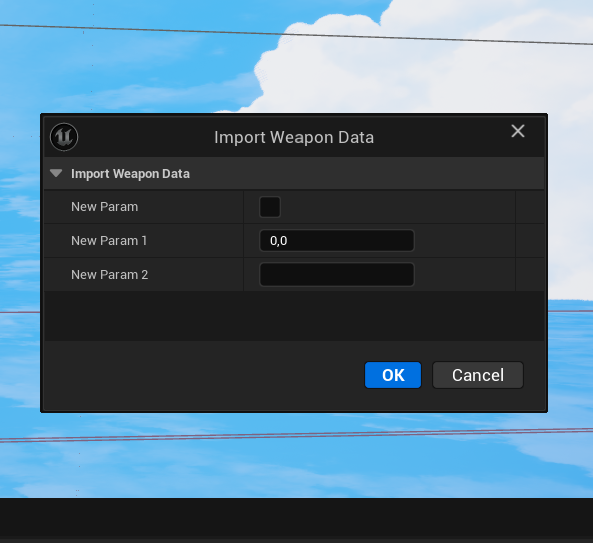
Asset Action Utility blueprints are actually pretty fun. You can give your functions input parameters, and a pop-up like this will appear in which you can specify the function inputs. You could write the entire Python script in blueprint code if you want.